
Bulk uploading media
Add up to 100 images and PDFs in one pass, with a shared description and folder.
Adding a season's worth of photos one at a time gets old. Bulk upload takes up to 100 images and PDFs in one pass, with names, a description, and a folder set before anything uploads.
Adding files
- Go to Media in the left navigation and click Bulk upload.
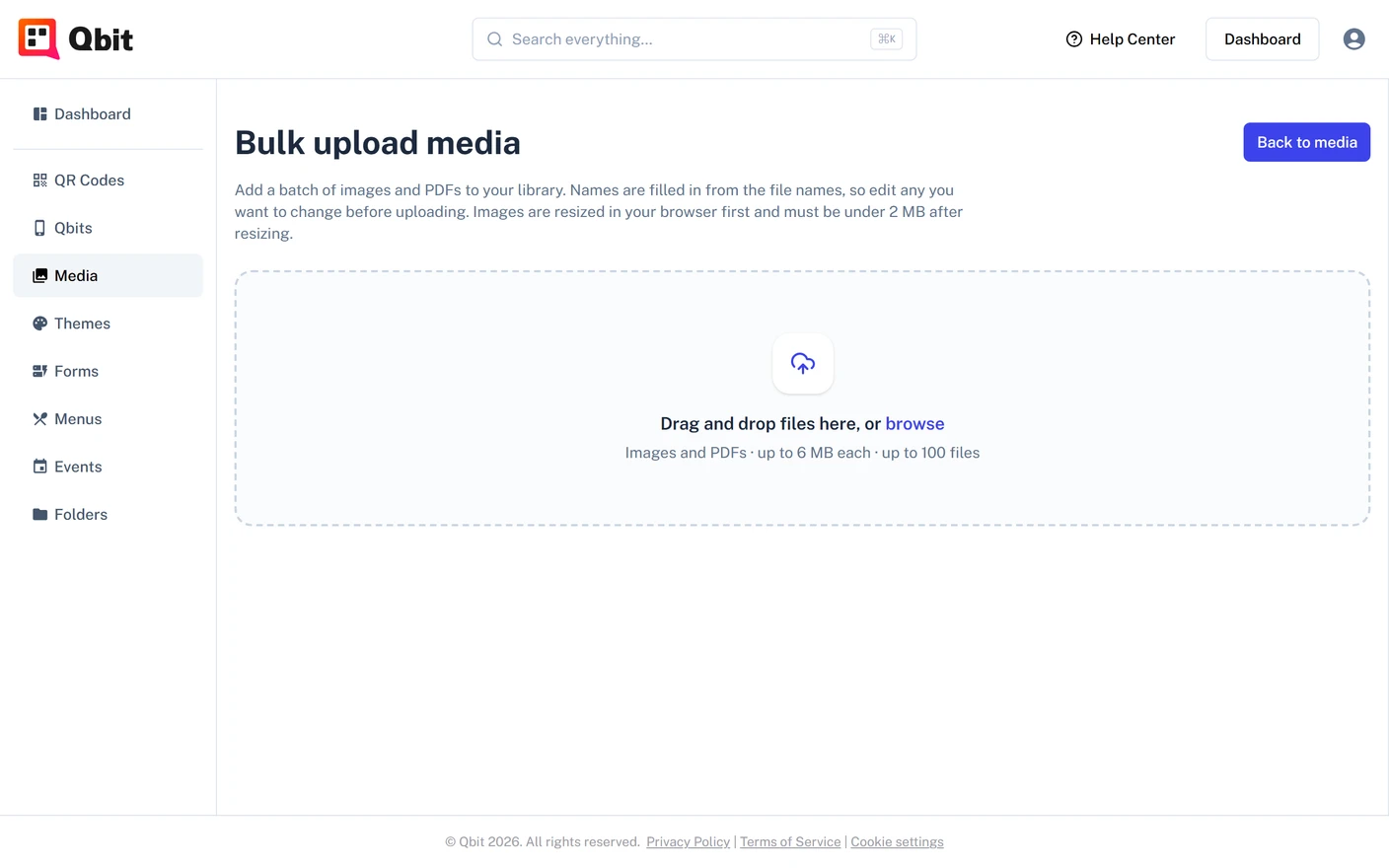
- Drag files onto the drop zone, or click it to browse. Add more at any point with the bar above the list; a file you've already added is skipped.
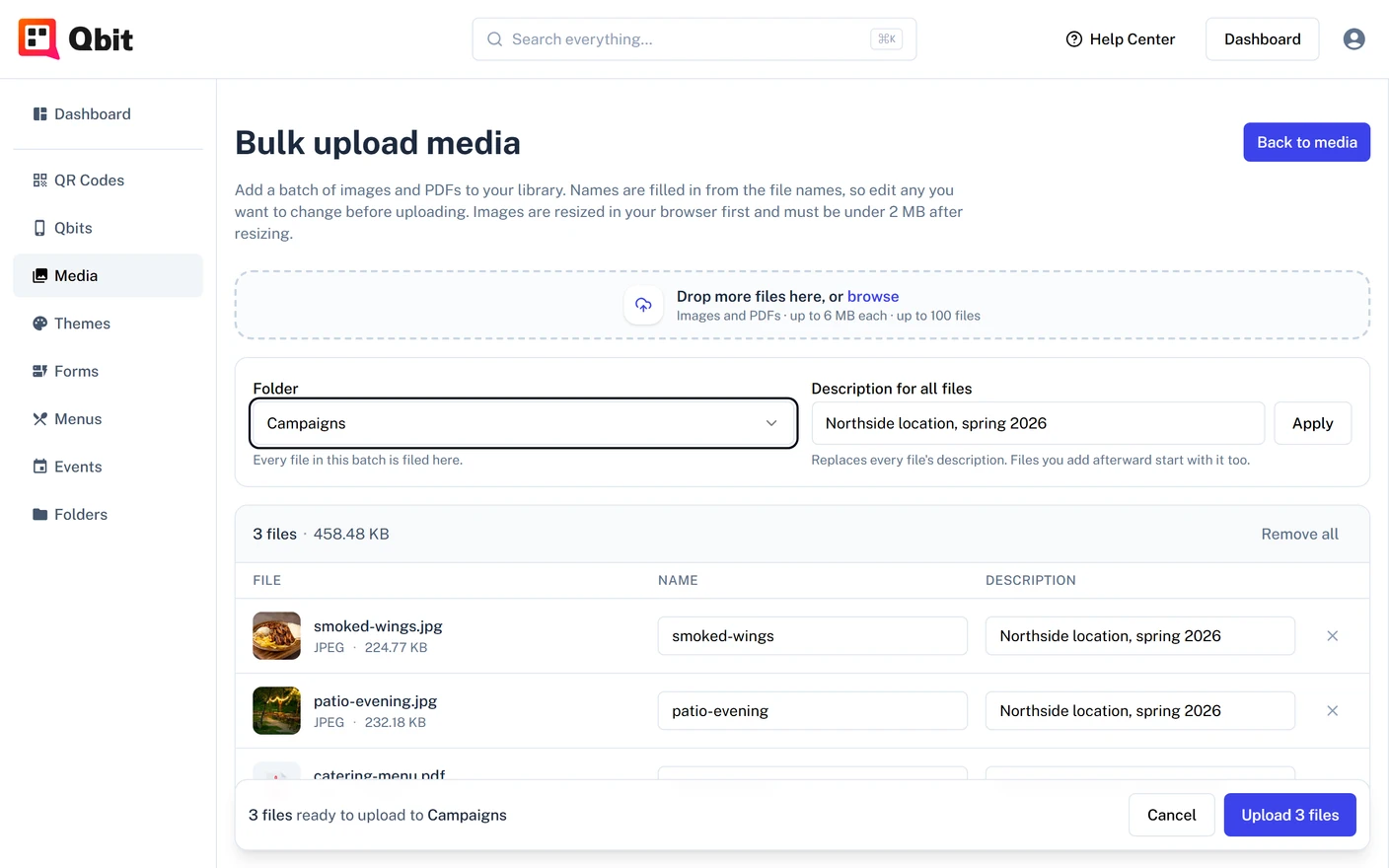
- Each file gets a row with a preview, its size, and a Name filled in from the filename. Edit any name and add a Description where it helps.
- Click Upload N files. You'll return to your media library with the whole batch in it.
Settings for the whole batch
Above the list are two controls that apply to every file:
- Folder (Premium and Team) - choose a folder and the whole batch is filed there as it lands. Opening a folder in Folders and clicking Bulk upload starts here with that folder already chosen. See Using folders and tags.
- Description for all files - type a description and click Apply to put it on every row. Files you add afterward start with it too, and you can still edit individual rows.
Before you upload
The page checks each file as you add it and says what needs attention in the bar at the bottom:
- A file that isn't an image or PDF, or is over 6 MB, is marked in red. Remove it to continue.
- Every file needs a name.
- On the Starter plan a batch can't take you past 5 media files; the page shows how many you have left.
The Upload button stays disabled until the list is clear.
If a file fails
Files upload one at a time, so one problem doesn't stop the rest. Anything that uploaded is saved to your library. The files that failed stay in the list with the reason, so you can fix or remove them and try again.
The most common cause is an image that is still over 2 MB after Qbit resizes it in your browser. Export a smaller version and add it again.
Good to know
- Up to 100 files per batch. Larger sets go in a second batch.
- Bulk-uploaded files behave like any other media: rename, replace, or move them later from the library. See Managing your media library.
Still stuck? Email support@qbit.codes.