Adding events to your page
Drop the Events block on a Qbit and style how the list looks.
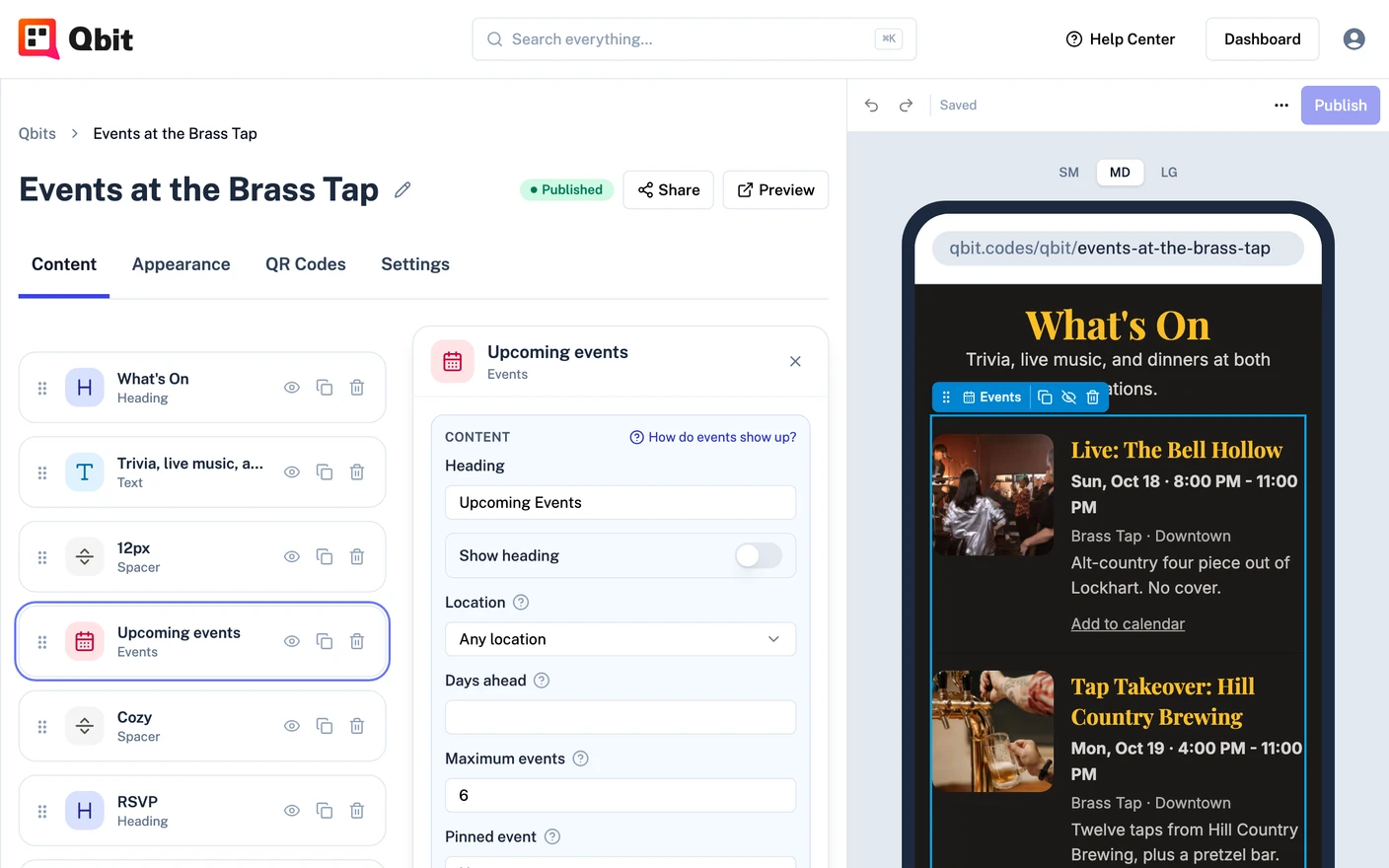
The Events block puts a live, always-current list of your upcoming events on any Qbit page. Add events in the Events section and they appear here automatically - publish a new one and every page showing events updates without an edit.
Add the block
- Open your Qbit in the editor and click Add a block.
- Choose Events from the Events group (Premium).
- Click the block to open its panel.
There's nothing to connect. Only published, active, upcoming events show, soonest first. Drafts never appear, and when an event ends it drops off on its own - no cleanup. How do events show up? at the top of the block's panel sums this up and links to the Events page.
Make it look like yours
The Look section of the block's panel shows each ready-made style as a preview of your own events:
- Cards - cards with the picture beside the text.
- Poster - cards with a wide picture on top.
- Overlay - large pictures with the text over them.
- Flat - no card background, a date chip, and a line between events.
- Side scroll - wide cards in a row that scrolls sideways.
- Carousel - cards that slide with arrows.
- Compact - small rows with a date chip and no description.
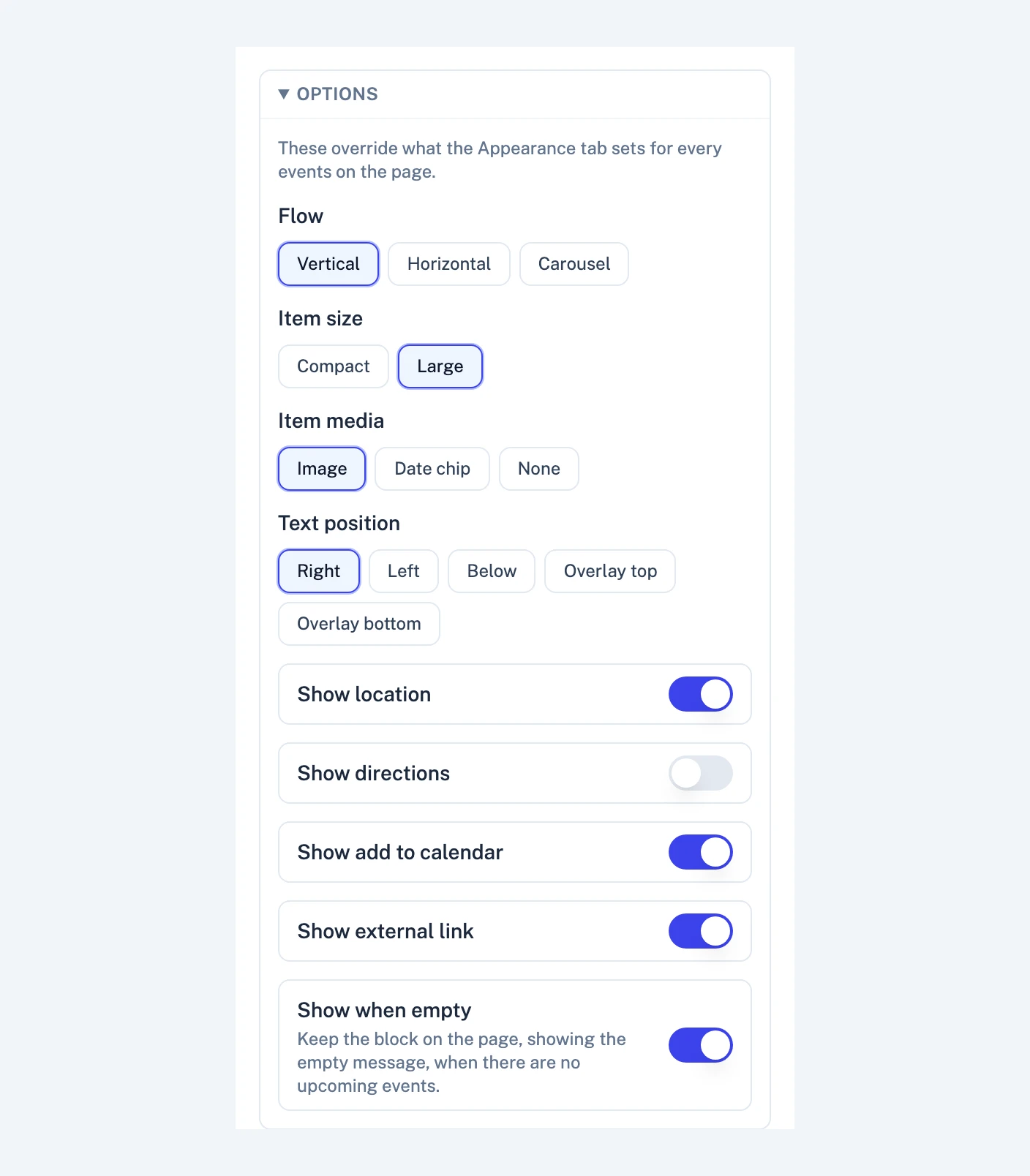
Page style takes the block back to whatever the Appearance tab sets for events. To fine-tune one block, open Options: Flow (stacked, side by side, or carousel), Item size, Item media (the event's image, a date chip, or none), and Text position (beside the picture, below it, or over it).
Fonts, colors, and per-part styling (title, date, buttons, cards) follow your page's theme. To restyle every events block on the page at once, open the Appearance tab and choose Events.
Choose what shows
- Location - only events at one venue (great for multi-location businesses).
- Days ahead - how far ahead to look; leave it empty for everything upcoming.
- Maximum events and a Pinned event that always sorts first.
- Switches to show the location, directions, the event's link button, and an add-to-calendar link.
- An Empty message for when nothing is scheduled, or turn off Show when empty to hide the block until there is.
Featuring one event
To promote a single event in a large section of its own, add the Featured Event block from the same Events group instead.
Still stuck? Email support@qbit.codes.