
Build your first page
Create a Qbit page, add content, and publish it.
A Qbit is a mobile page - the thing your QR code or bio link opens. Link a few together and you have a mini site. Let's build and publish one.
-
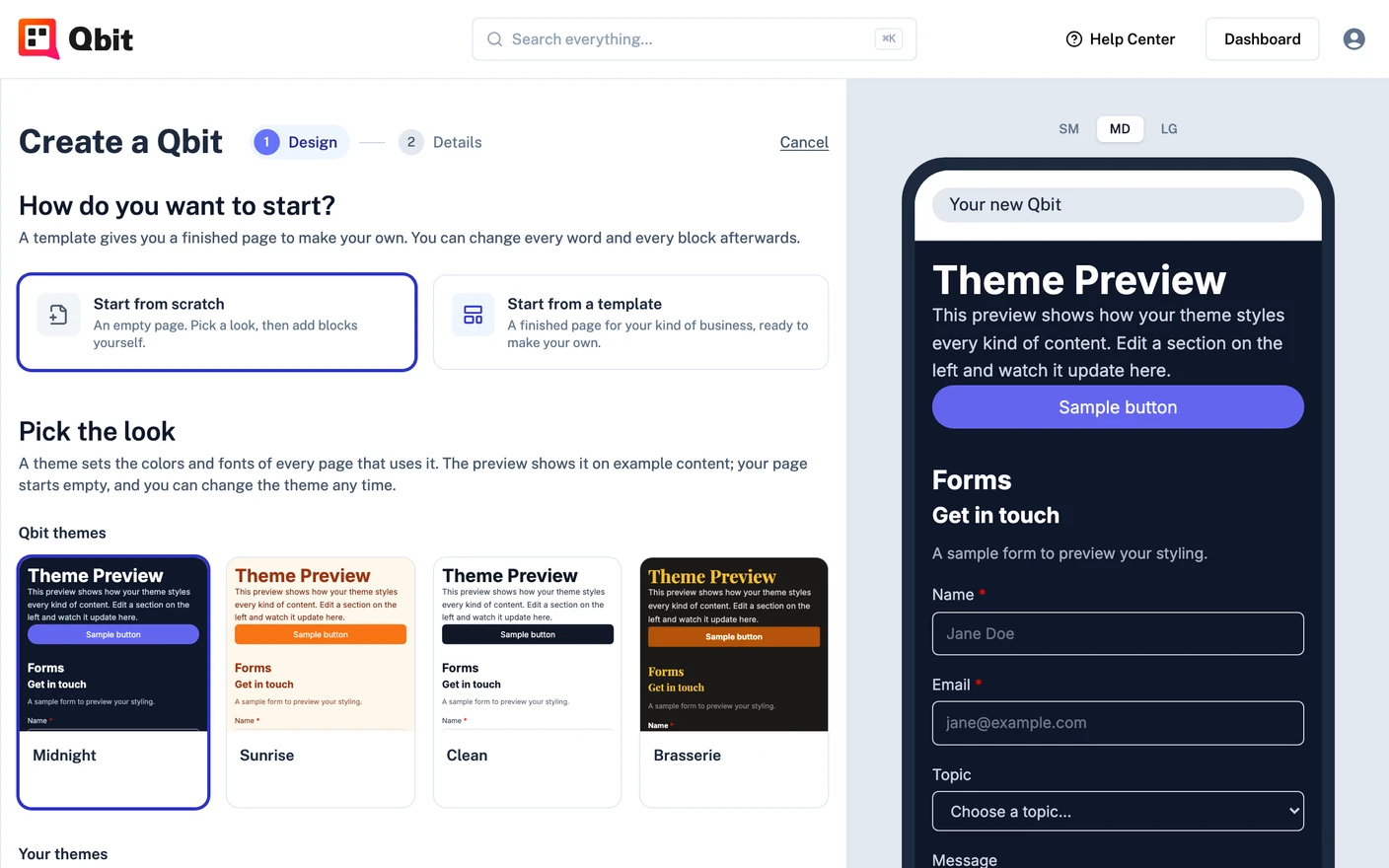
Create it. Go to Qbits → Create a Qbit. Start from scratch or from a template, then pick a look: the template's own theme, or any other. The phone on the right shows the page taking shape as you choose. Starting from scratch, the phone fills with example content so you can judge each theme; your page itself starts empty.
-
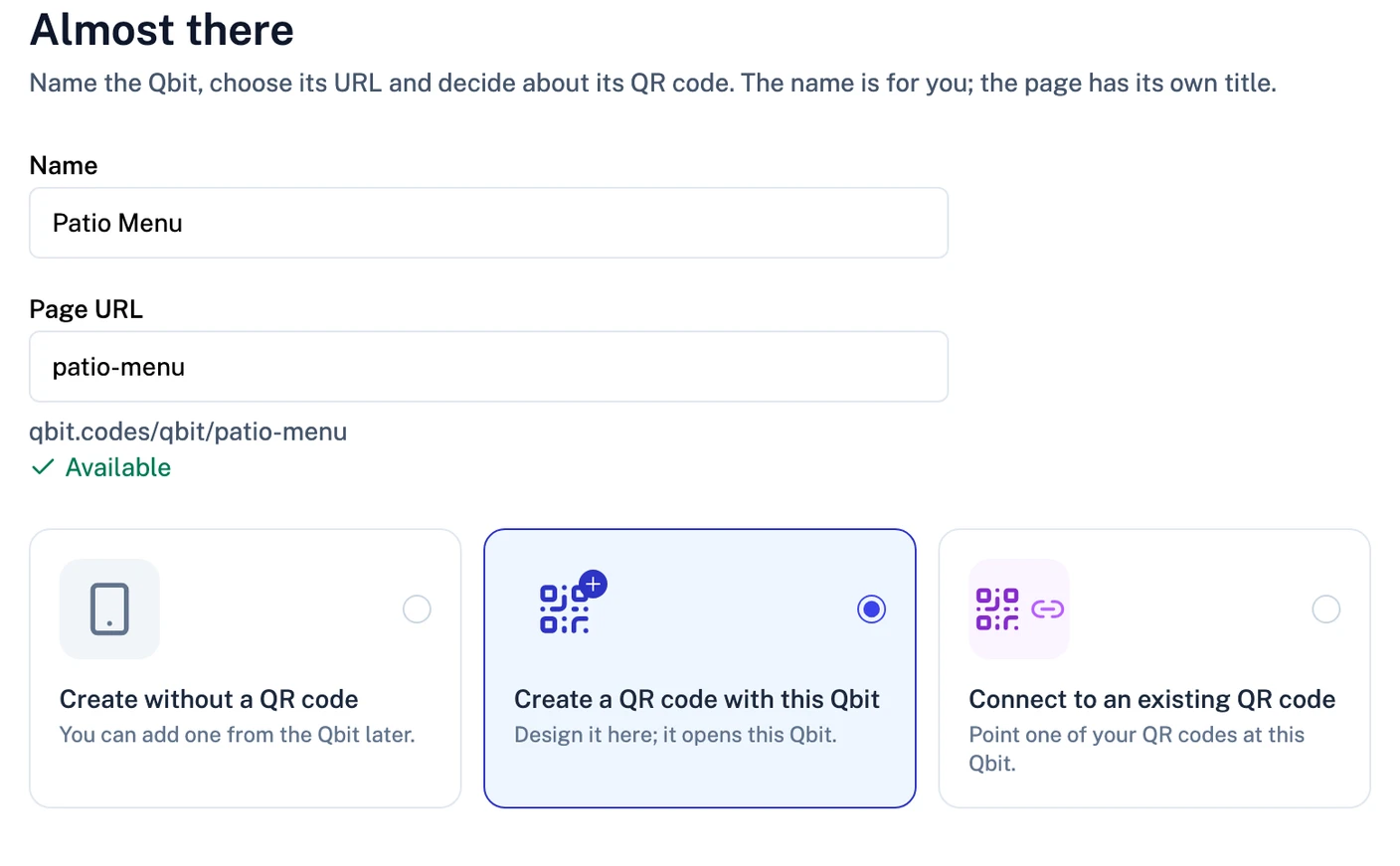
Choose the URL and QR code. On the Details step, name the Qbit. The Page URL fills in from the name; type over it to use something else, and the field shows whether that address is available. You can change it later - see Setting your page's URL. Then choose a QR code option: no QR code for now, a new one you design right there, or one of your existing codes pointed at this page. A new code saves you a step later; it already opens this page.
-
Add your content. In the editor, click Add a block and stack up blocks. A proven first page:
- An Image - your logo or a photo
- A Heading - who you are or what's on offer
- A short Text block
- A Button - the one thing you want people to do
- Social Links at the bottom
-
Watch the phone preview. The frame on the right shows exactly what visitors will see, updating as you edit. Everything autosaves - there's no save button.
-
Style it. On the Appearance tab, pick a theme or set your page's colors and fonts. Start simple; you can go deeper with themes later.
-
Publish. Click Publish above the preview. Your page is live.
Scan the connected code (or use Share, beside the page title, to copy the link) and admire your work on a real phone - the true test of any mobile page.
From here, the editor goes as deep as you want: more block types, menus, forms, and reusable themes. But you've done the important part: there's a page with your name on it, live behind a code.
Still stuck? Email support@qbit.codes.