
Adding bookings and reservations
Let people book a time with Calendly or reserve a table with OpenTable, right on your page.
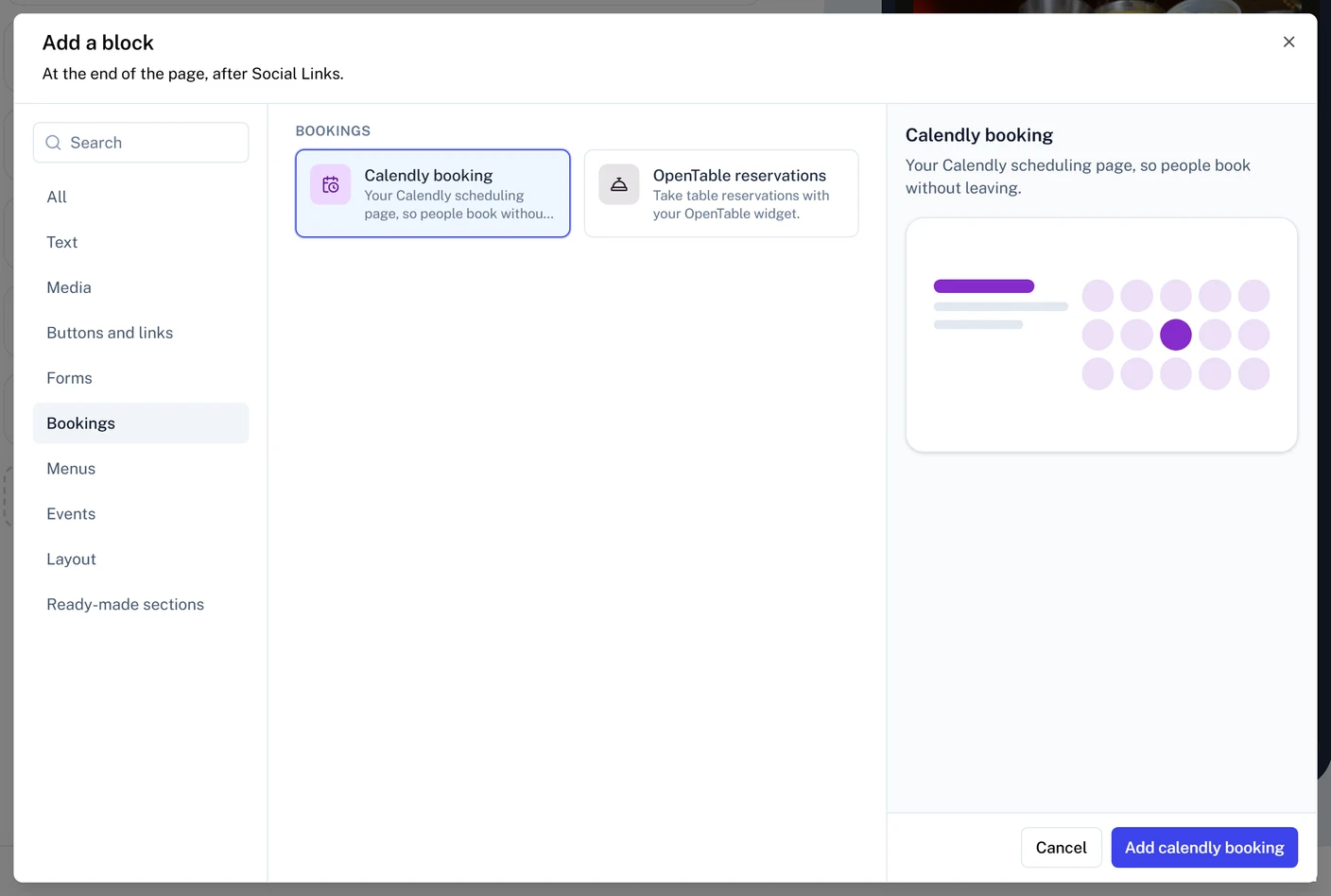
The Bookings blocks put your Calendly scheduling page or your OpenTable reservation widget on a Qbit page, so people book without leaving it. There's no account to connect: paste a link or an ID and the block shows the real thing.
Calendly
- Open your page in the editor and click Add a block.
- Choose Calendly booking from the Bookings group.
- In the block's panel, paste your link into Calendly link. Copy it from Calendly: the link to your whole scheduling page (
calendly.com/your-name) or to one event type (calendly.com/your-name/30min). - Publish the page.
The panel also sets:
- Show event details - the event's name, length, and description beside the calendar. Turn it off to show the calendar alone.
- Width, Corners, and Alignment - how the calendar sits on the page.
The block takes whatever height the booking page needs, so the whole flow shows without scrolling inside it. Bookings, reminders, and cancellations are all handled in Calendly, the same as booking from your Calendly page.
OpenTable
- Open your page in the editor and click Add a block.
- Choose OpenTable reservations from the Bookings group.
- In OpenTable restaurant ID, type your restaurant ID, or paste the reservation widget code from your OpenTable account. Pasted code also fills in the layout and language it was made with.
- Publish the page.
The panel also sets:
- Layout - Standard, Tall, or Button. The widget is a fixed size, so these are its sizes too. Button is the smallest: a single button that starts the reservation.
- Language - the language the widget is shown in.
- Open booking in a new tab - on, guests finish their reservation on OpenTable in a new tab. Off, they book inside the widget.
- Alignment - Left, Center, or Right.
Reservations land in OpenTable like any other.
If the block is empty
A Bookings block shows nothing on your page until it has a link or ID it can use. A template that includes one shows a sample of the booking page or widget until you add your own. If the panel says the link or ID isn't valid:
- Calendly - use the link people book from, like
calendly.com/your-name, not a link to your Calendly account settings. - OpenTable - check the restaurant ID is only numbers, or paste the full widget code instead.
Still stuck? Email support@qbit.codes.