Creating a Block
Build a header, a footer, or any section once, then use it on all your pages.
A Block is a section you build once and place on as many pages as you like: a header, a footer, a "find us" section. Edit and publish it, and every page that uses it updates.
Creating a Block
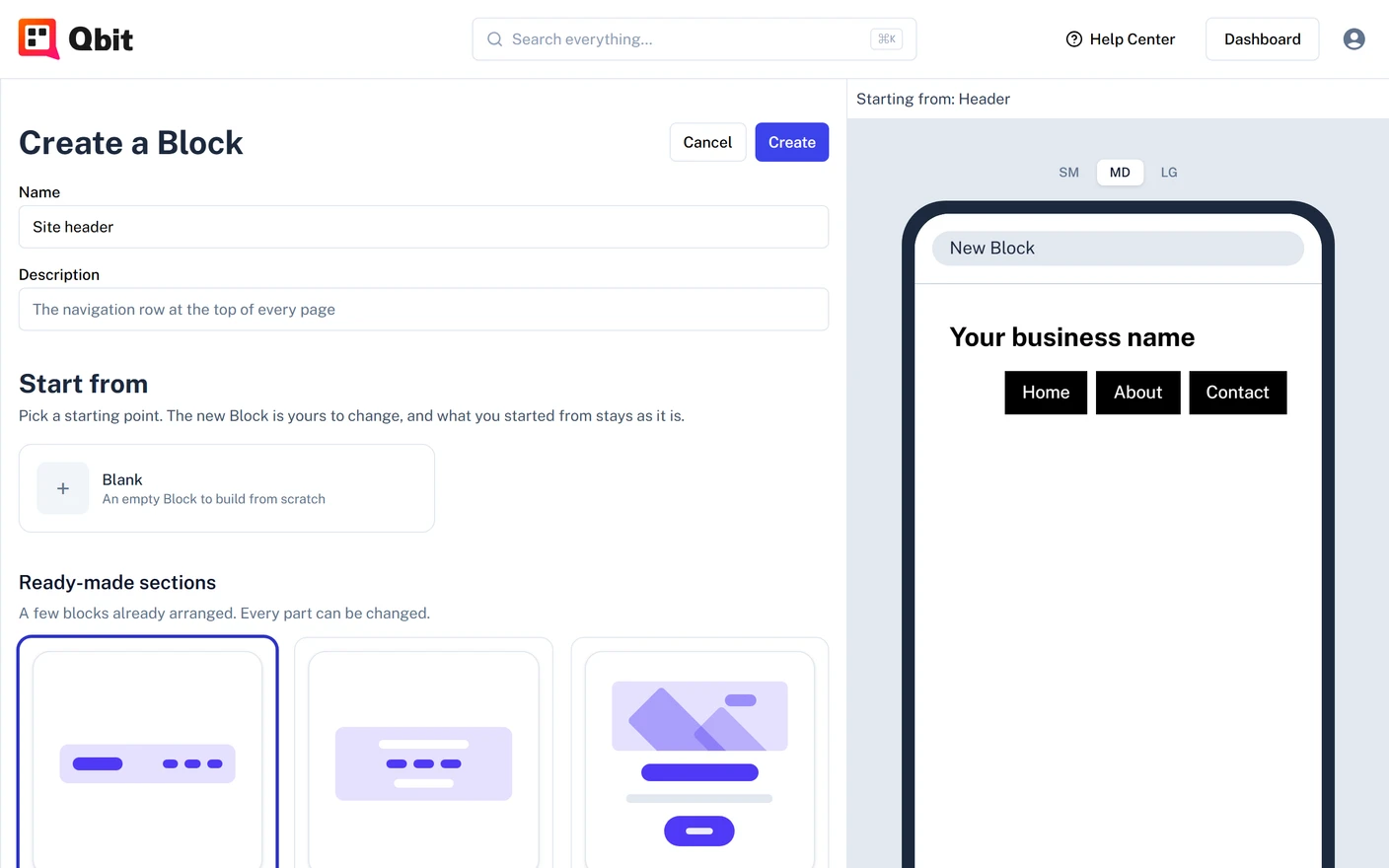
- Go to Blocks in the sidebar and click New Block.
- Give it a Name. A Description is optional.
- Under Start from, pick a starting point. The phone on the right shows your choice.
- Blank - an empty Block to build from scratch.
- Ready-made sections - a few blocks already arranged, with Header and Footer first. Every part can be changed.
- Your Blocks - a copy of a Block you already have. The original doesn't change.
- Click Create. The Block opens in its own editor.
You can also make a Block from something already on a page. See Using a Block on your pages.
Building your Block
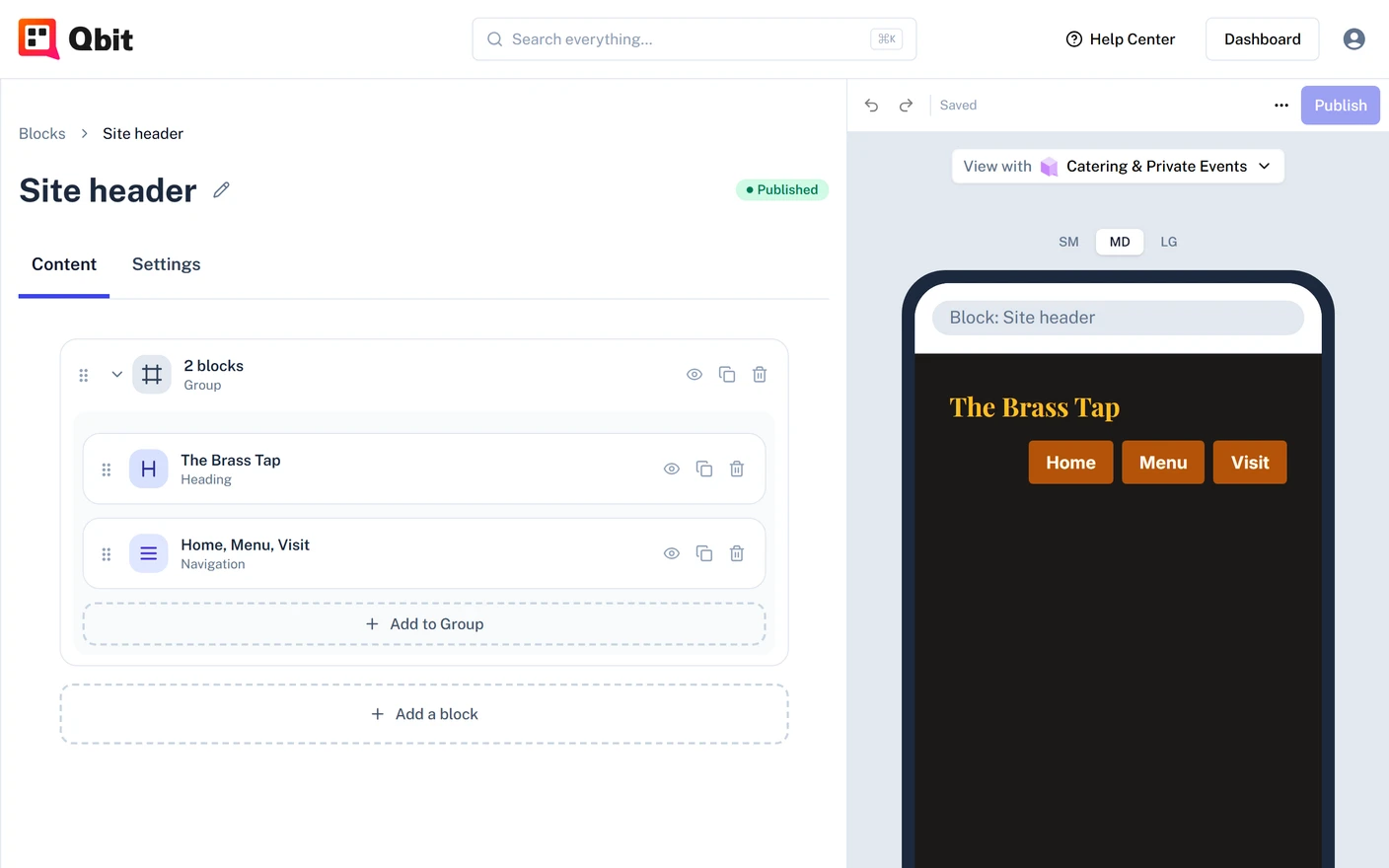
The Block editor works like the page editor, with two tabs:
- Content - add, edit, and arrange blocks the same way you do on a page. See Working with blocks.
- Settings - the description, the pages that use the Block, and Delete Block.
There's no Appearance tab, because a Block takes the look of the page it's placed on: its theme, colors, and fonts. A color you set on a block inside the Block stays fixed. A Block can't hold another Block.
Seeing it in your page's look
The phone shows the Block on its own at first. To see it the way visitors will, open View with above the phone and choose one of your Qbits. The preview takes that page's look. Nothing is saved to the Block.
Publishing your changes
Your edits are saved as a draft, and pages keep showing the last published version until you click Publish.
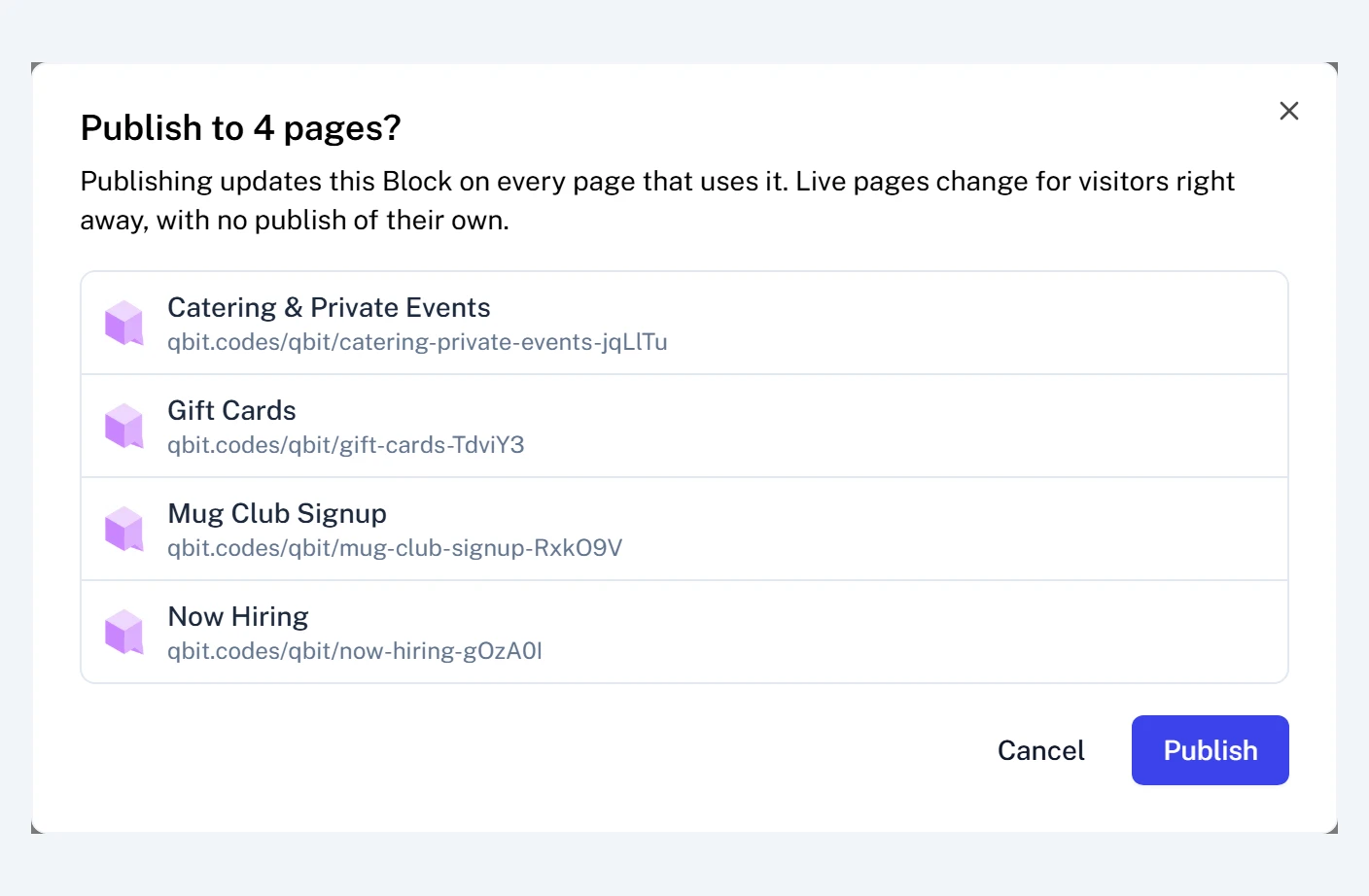
If pages already use the Block, Qbit lists them and asks first. Publishing changes those live pages right away, with no publish of their own.
Managing your Blocks
The Blocks page lists each Block with its status and the number of pages it's used on. Open a Block's row menu to rename or delete it.
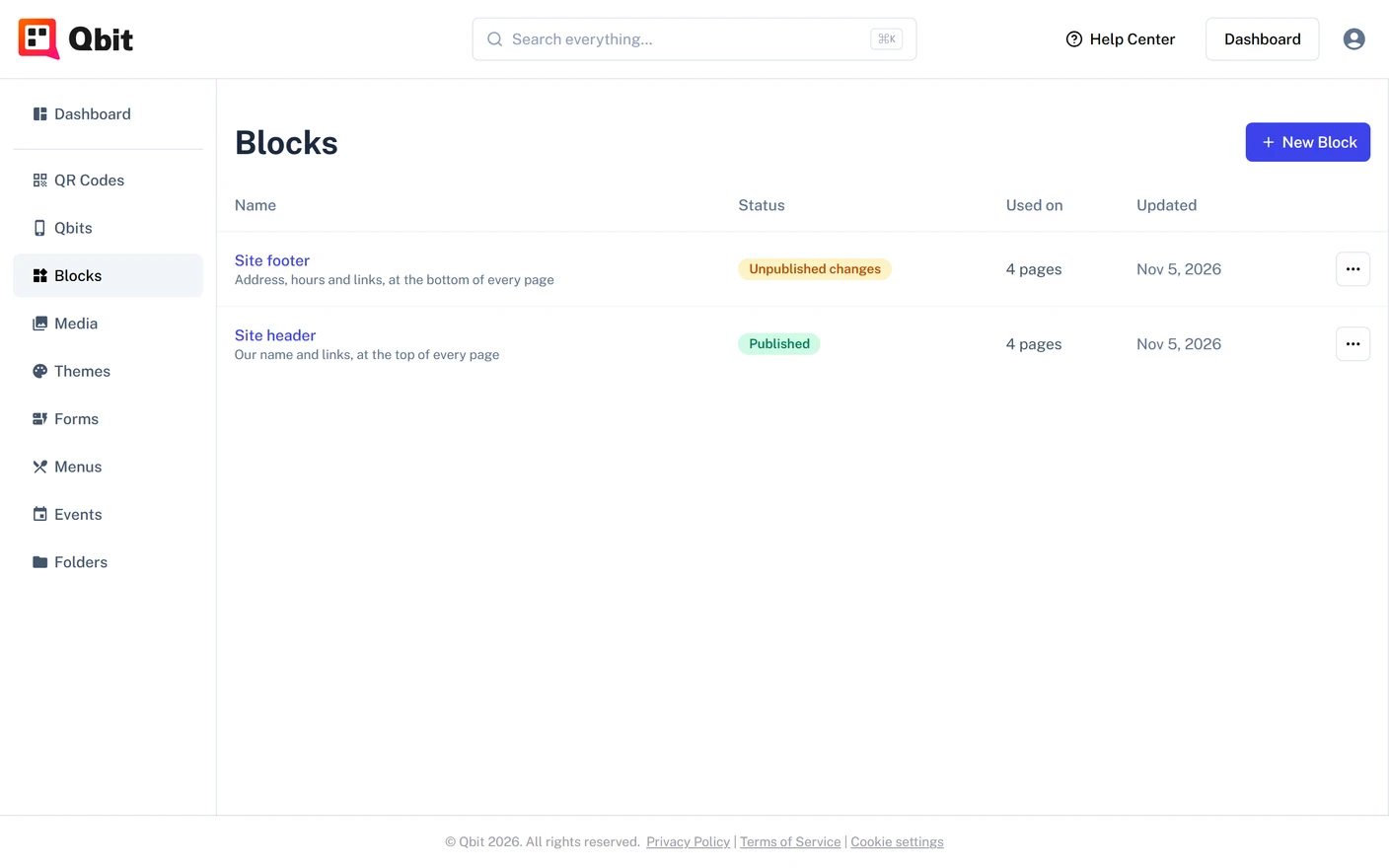
A Block can't be deleted while a page uses it. Qbit shows you which pages, so you can remove it from them first.
The Starter plan includes 3 Blocks. Premium and Team have no limit. See Plans and billing.
Still stuck? Email support@qbit.codes.