Using a Block on your pages
Place a Block, update it everywhere, or change it on just one page.
Place a Block on any of your pages, and the page follows it from then on. Inside the page editor, Blocks are called Reusable Blocks, which sets them apart from the ordinary blocks of a page.
Placing a Block on a page
- On the Content tab, click Add a block, or the + between two cards.
- Choose Reusable Blocks on the left, then click a Block. The preview shows it in this page's look.
- Click the Add button under the preview. It shows the Block's name.
- Publish the page.
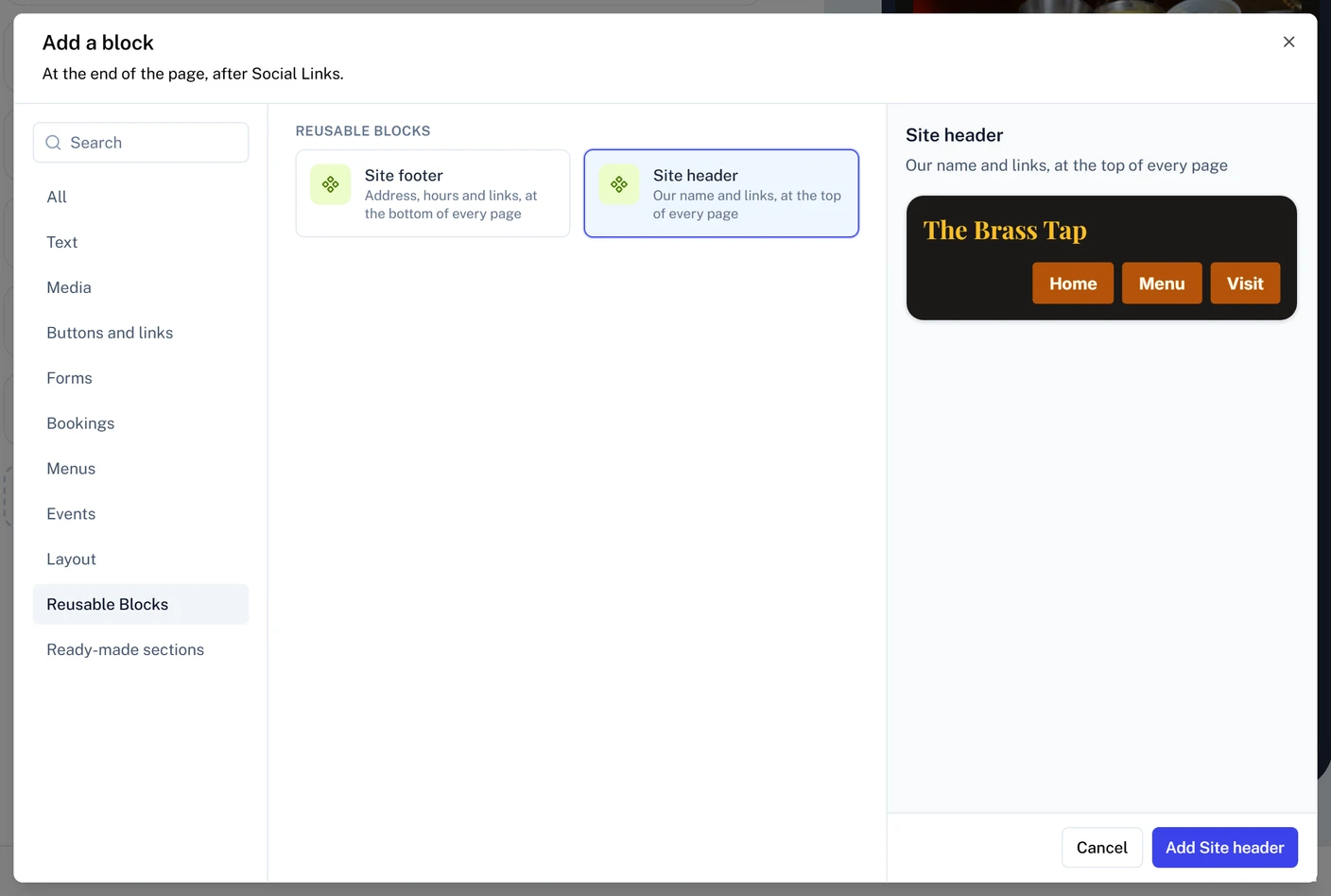
A Block that hasn't been published yet is listed, but it can't be added until you publish it.
Saving part of a page as a Block
Already built something you want on other pages? Turn it into a Block where it sits.
- On the Content tab, find the card of a block or a Group and click its Save as Reusable Block icon.
- Give it a name and click Save.
The card becomes a Reusable Block, ready to place on your other pages. Anything that uses your theme's colors and fonts follows the theme of each page it's placed on. Custom colors and fonts stay as they are.
A Group that already holds a Reusable Block can't be saved as one.
Editing a Block everywhere
Click a Reusable Block's card to open its panel. A page has nothing to change about a Reusable Block, so the panel shows how many pages use it and what you can do with it.
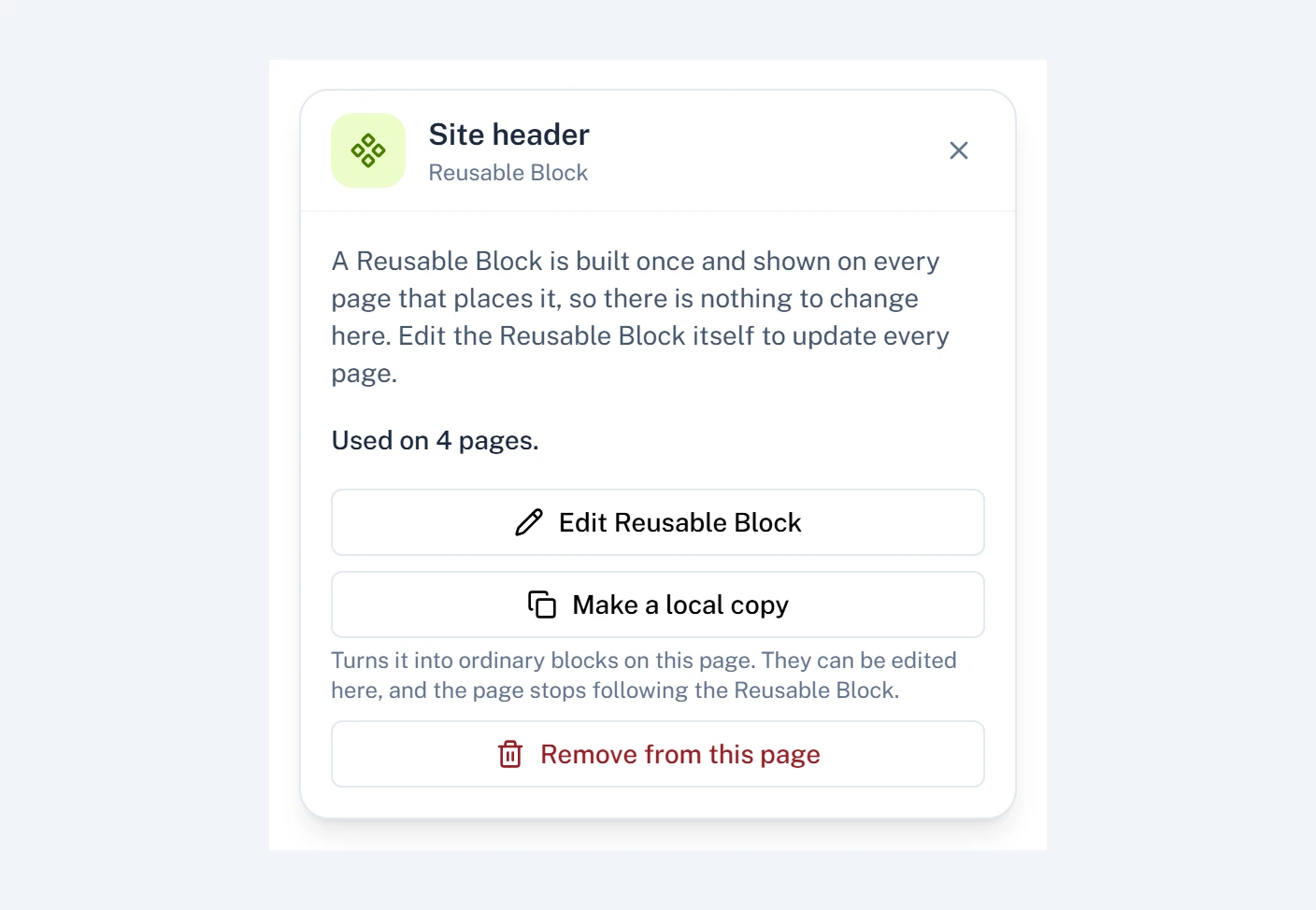
Click Edit Reusable Block to open it in its own editor, make your changes, and Publish. Every page that uses it updates, with no publish of their own.
Changing a Block on one page only
Click Make a local copy. The Block becomes ordinary blocks on this page that you can edit here, and the page stops following the Block. Other pages aren't affected.
Removing a Block from a page
Click Remove from this page, then Publish the page. The Block itself stays in your Blocks list, ready to use elsewhere.
If a Block shows nothing
The panel says why visitors see nothing in that spot, such as a Block that isn't published yet. A page moved to another team without its Block also shows nothing there.
Still stuck? Email support@qbit.codes.